
Web Manifest 介紹
介紹
Web Manifest 是一個 JSON 格式的設定檔,可以用來定義 Web App 安裝時顯示的資訊與設定安裝後啟動 Web App 的介面, 範例網站 可以參考實際上在不同裝置上會如何呈現,範例網站的程式碼解說參考 這篇 文章。
Web Manifest 設定比起說明看到實際顯示的畫面更容易了解,所以這篇會使用大量截圖。
範例
參考 PWA sharing 的 Web manifest 更容易理解這些屬性,下面挑了一些支援度相當高的屬做說明,影響 Web App 很明顯建議都要設定。
screenshots 與 icons 內容比較複雜底下另外做說明。
基本設定
{
  "name": "PWA sharing Web App",
  "short_name": "PWA sharing",
  "description": "PWA sharing example code",
  "scope": "/",
  "start_url": "/",
  "display": "standalone",
  "background_color": "#ffffff",
  "theme_color": "#51a2ff",
  "icons": [],
  "screenshots": []
}-
name
完整名稱,安裝成 Web App 後裝置的應用程式、應用程式的清單裡或啟動 Web App 的畫面上
可能會顯示這個名稱,建議與short_name一致才不會出錯 -
short_name
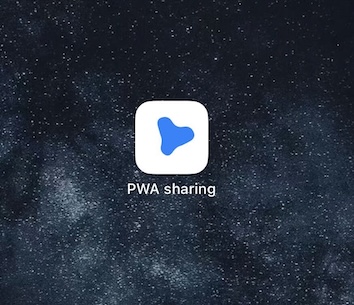
顯示在桌面上的 Web App 名稱,只有一個圖示的寬度,所以要短一點
macOS iOS 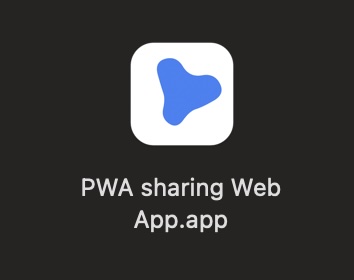
-
description
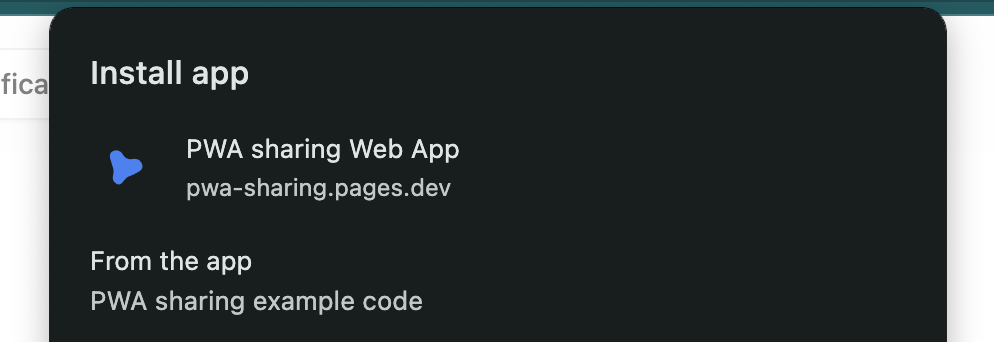
Web App 的描述,像是 App 商店裡用於描述這個程式的用途,在安裝介面會顯示在 UI 上
-
scope
指定 Web App 的適用範圍,例如網站是
https://example.com但是開始接受安裝成爲 Web App 的是另外開發的網站放在https://example.com/app路徑時可以指定成/app -
start_url
指定未開啟的 Web App 開起來時預設要開哪一個頁面,通常首頁可以直接放
/ -
display
決定安裝成 Web App 時的應用程式外框
standalone 
minimal-ui 
-
background_color
Web App 尚未載入前空白畫面預設的背景色
-
theme_color
主題顏色會影響 Web App 頂部 URL 介面區塊的顏色,需要 dark mode 的時候可以在 HTML 加上 meta 根據主題顏色動態切換
自訂 dark / light 模式下的主題顏色
<meta
  name="theme-color"
  content="#51a2ff"
  media="(prefers-color-scheme: light)"
/>
<meta
  name="theme-color"
  content="#162556"
  media="(prefers-color-scheme: dark)"
/>
macOS light 
macOS dark 
iOS light 
iOS dark 
圖示
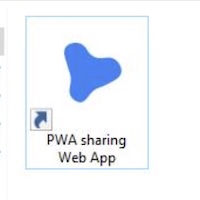
安裝到不同裝置上顯示的圖示會是不同尺寸,建議直接用網站的圖示透過其他工具產生對應大小的圖片,PWA sharing 用的 Vite PWA 有提供一個 CLI
工具 @vite-pwa/assets-generator ,可以產生不同尺寸的圖示與啟動畫面,設定方式參考 官方文件 和 PWA sharing 設定 pwa-assets.config.js
[
  {
    "src": "pwa-64x64.png",
    "sizes": "64x64",
    "type": "image/png"
  },
  {
    "src": "pwa-192x192.png",
    "sizes": "192x192",
    "type": "image/png"
  },
  {
    "src": "pwa-512x512.png",
    "sizes": "512x512",
    "type": "image/png"
  },
  {
    "src": "pwa-512x512.png",
    "sizes": "512x512",
    "purpose": "any",
    "type": "image/png"
  },
  {
    "src": "maskable-icon-512x512.png",
    "sizes": "512x512",
    "purpose": "maskable",
    "type": "image/png"
  }
]| macOS | Win10 | iOS | Android |
|
|
|
|
|
安裝介面
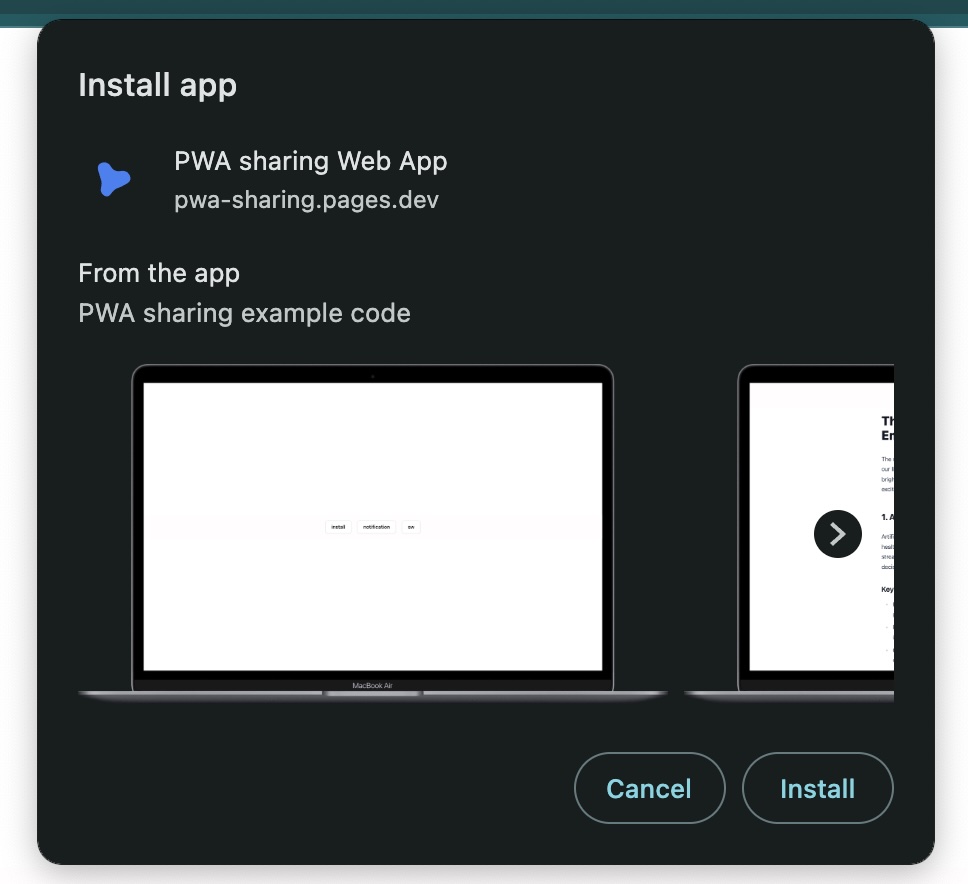
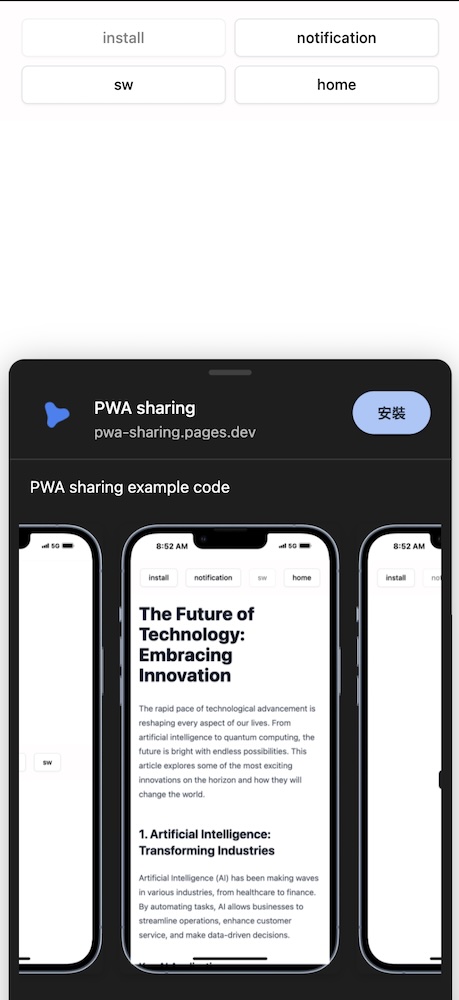
透過 screenshots 屬性可以在安裝時顯示 Web App 的預覽圖,Windows & macOS 支援度比較高
注意:描述
description也需要有設定screenshots才會在安裝時一起顯示,否則只會有網站名稱
Windows & macOS 在 chrome 上顯示的安裝界面一致
[
  {
    "src": "rich-install/0_desktop-home.png",
    "label": "PWA sharing 0_desktop-home",
    "form_factor": "wide",
    "sizes": "1600x919",
    "type": "image/png"
  },
  {
    "src": "rich-install/1_desktop-sw.png",
    "label": "PWA sharing 1_desktop-sw",
    "form_factor": "wide",
    "sizes": "1600x919",
    "type": "image/png"
  },
  {
    "src": "rich-install/2_desktop-notification.png",
    "label": "PWA sharing 2_desktop-notification",
    "form_factor": "wide",
    "sizes": "1600x919",
    "type": "image/png"
  },
  {
    "src": "rich-install/0_mobile-home.png",
    "label": "PWA sharing 0_mobile-home",
    "form_factor": "narrow",
    "sizes": "772x1568",
    "type": "image/png"
  },
  {
    "src": "rich-install/1_mobile-sw.png",
    "label": "PWA sharing 1_mobile-sw",
    "form_factor": "narrow",
    "sizes": "772x1568",
    "type": "image/png"
  },
  {
    "src": "rich-install/2_mobile-notification.png",
    "label": "PWA sharing 2_mobile-notification",
    "form_factor": "narrow",
    "sizes": "772x1568",
    "type": "image/png"
  }
]
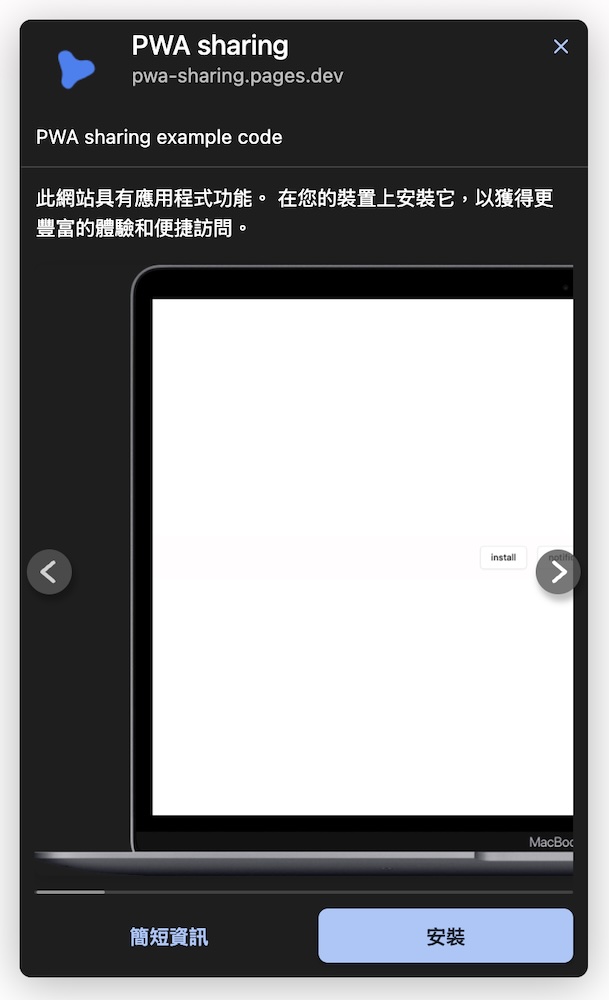
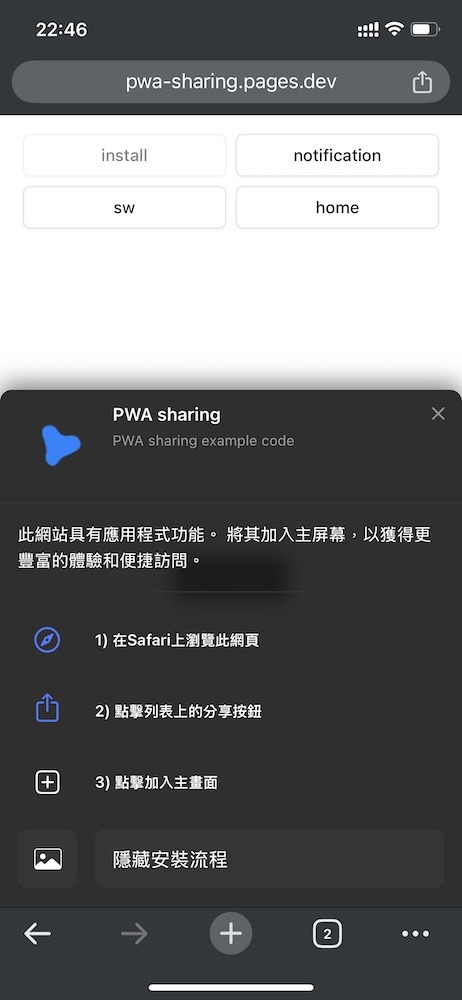
客製化的安裝介面
會需要客製化的原因
- 行動裝置上也有顯示 Web App 預覽圖可以讓使用者更容易了解安裝的目的
- 加入安裝引導,iOS 上並不叫安裝而是
加入主畫面,所以最好有引導告訴使用者如何安裝 Web App
| macOS | iOS | Android |
|
|
|